[Oracle DataBase Server 12.2 Installation on Oracle Linux 7.4]: Configuring Display Manager
Preparation and verification
192.168.1.5 - ip address of the computer from which the installation process is managed.
192.168.56.101 - ip address of the server
If installing from a Windows machine
Install XMing and additional fonts. :
http://sourceforge.net/projects/xming/
http://sourceforge.net/projects/xming/files/Xming-fonts/
Reboot. If you don’t reboot, during installation of version 10 RAC, problems occurred (buttons were not displayed on the last installation step).
Next, configure access rules.
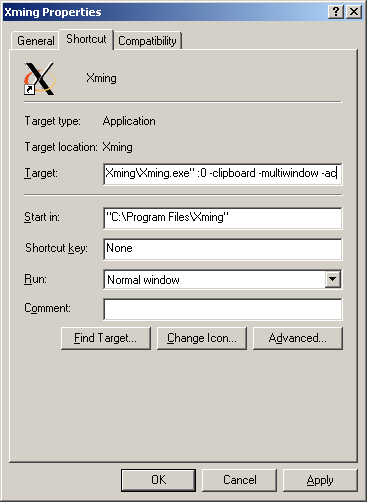
In the simplest case, right-click on the xming shortcut. Go to properties and add -ac to the target (i.e., no access control)
If installing from a Linux machine
Preparing Oracle Linux 7.3 client with gnome environment
# yum install -y nmap nc xclock
# vi /etc/gdm/custom.conf
Add to the blocks:
[security]
DisallowTCP=false

[xdmcp]
Enable=true
# service gdm restart
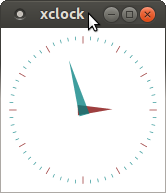
$ xclock -display 192.168.1.5:0
If the clock appears, everything is fine and nothing else is needed.
Preparing Ubuntu client
$ sudo apt-get install -y nmap nc xclock
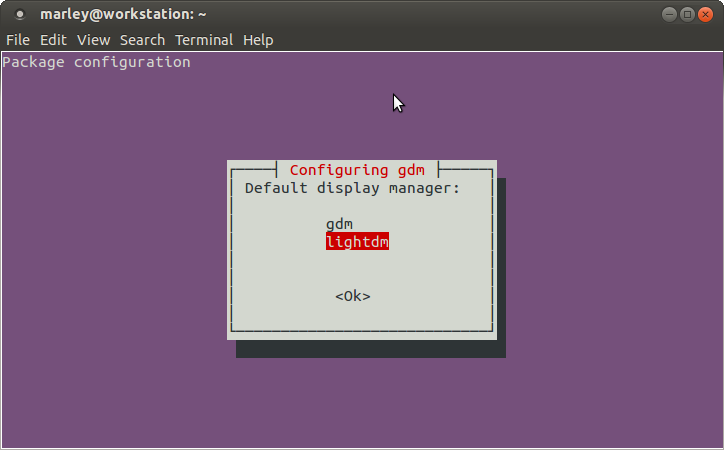
Option with lightdm.
If needed, you can switch later with commands:
# dpkg-reconfigure gdm
# dpkg-reconfigure lightdm
# vi /etc/lightdm/lightdm.conf
###########################

[SeatDefaults]
user-session=ubuntu
greeter-session=unity-greeter
xserver-allow-tcp=true

###########################
# sudo restart lightdm
$ xclock -display 192.168.1.5:0
If the clock appears, everything is fine and nothing else is needed.
If the clock does not appear:
$ ps ax | grep dm
$ ps lf -C Xorg
There should be no line “no-listen tcp” (Or something similar)
$ netstat -an | grep -F 6000
tcp        0      0 0.0.0.0:6000            0.0.0.0:*               LISTEN
tcp6       0      0 :::6000                 :::*                    LISTEN
# nmap -p 6000 192.168.1.5
Starting Nmap 6.40 ( http://nmap.org ) at 2017-11-23 09:02 MSK
Nmap scan report for 10.14.3.43
Host is up (0.000048s latency).
PORT     STATE SERVICE
6000/tcp open  X11
$ nc -vv 192.168.1.5 6000
Connection to 192.168.1.200 6000 port [tcp/x11] succeeded!=
Allow form output from server to client
Then on the client as root I do:
# xhost +
On the server:
Check if the client port is open and accessible
# yum install -y nmap
# nmap -p 6000 192.168.1.5
result
***
6000/tcp open  X11
Next, it’s best to do the following:
– if not installed earlier, install the xdpyinfo package. It is needed for displaying windows on the client machine.
# yum install -y xdpyinfo xclock
# su - oracle12
$ xclock -display 192.168.1.5:0
You can also try
$ export DISPLAY=192.168.1.5:0.0
$ xdpyinfo
name of display:    192.168.1.5:0.0
version number:    11.0
vendor string:    The X.Org Foundation
vendor release number:    11702000
X.Org version: 1.17.2
maximum request size:  16777212 bytes
motion buffer size:  256
bitmap unit, bit order, padding:    32, LSBFi
*****