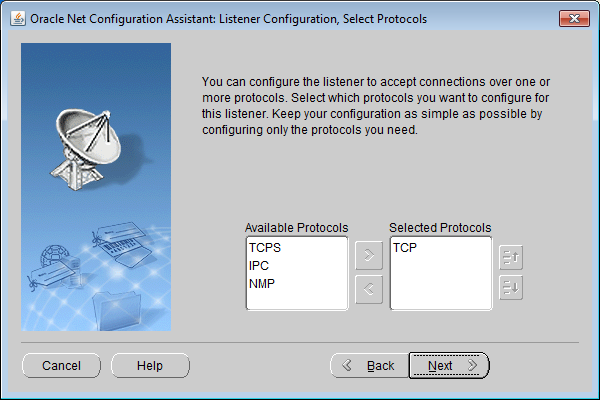
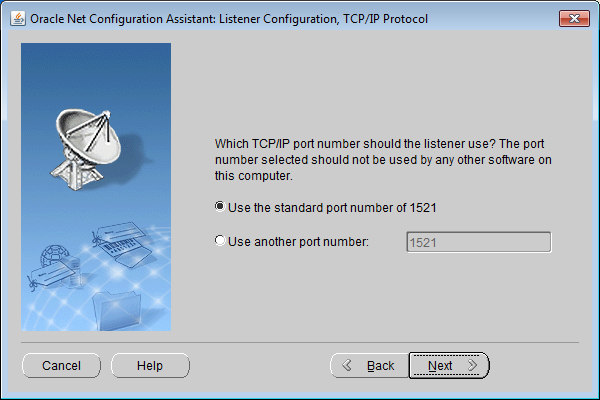
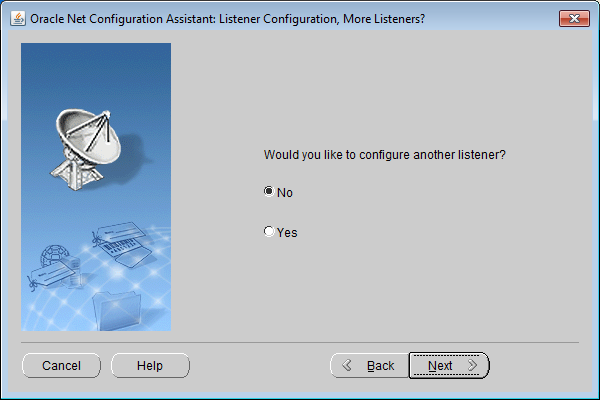
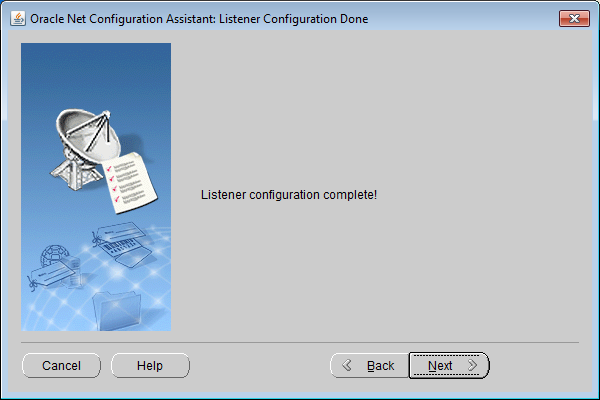
[Installation of Oracle Client 12C (32 bit) on Windows 7 (64 bit)]

If you find errors, inaccuracies, typos, or know better ways, write to the chat.


Oracle Client is needed for remote connection to the database by various programs. Programs written in Java - so-called (thin clients) can do without a client. For example, SQL Developer and JDeveloper. This also applies to web applications that are run directly on the server, such as APEX, Enterprise Manager, iSQLPLUS.

For connecting other programs - TOAD, PL/SQL Developer, SQL PLUS and most others, the oci.dll (oracle call interface) library is required, which actually provides this capability and is of course included in the set of various additional programs united under the common name Oracle Client.

You can download the Oracle Client distribution from rutracker or a later version from the official website. If you have access to MetaLink, it is recommended to download the latest version from there.

Oracle client for Windows
hxxp://rutracker.org/forum/viewtopic.php?t=4803357

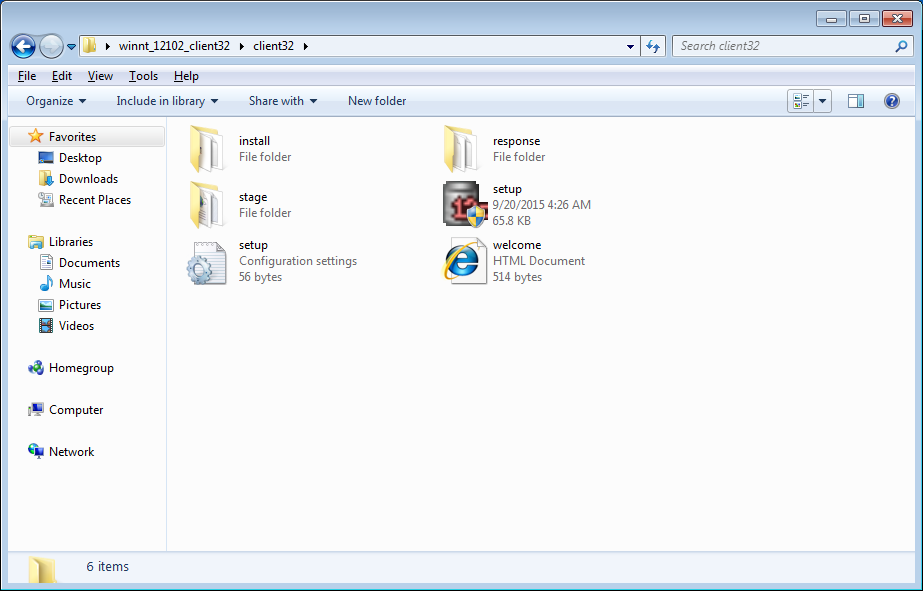
For client installation, 1 archive is enough
winnt_12102_client32.zip

You can of course install the 64-bit client and sqlplus will work fine with it. However, PL/SQL Developer currently only works with the 32-bit client, so that is described below

UPD. PL/SQL Developer version 14.0.1 works with the 64-bit client.


Environment preparation

First, you need to install 1 library on Windows 2008. Without it, the installation of the 32-bit client will fail. The 64-bit client does not require this library.

https://www.microsoft.com/en-gb/download/details.aspx?id=5555


hosts

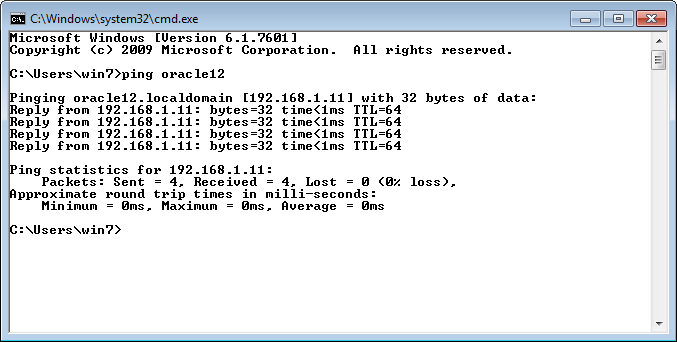
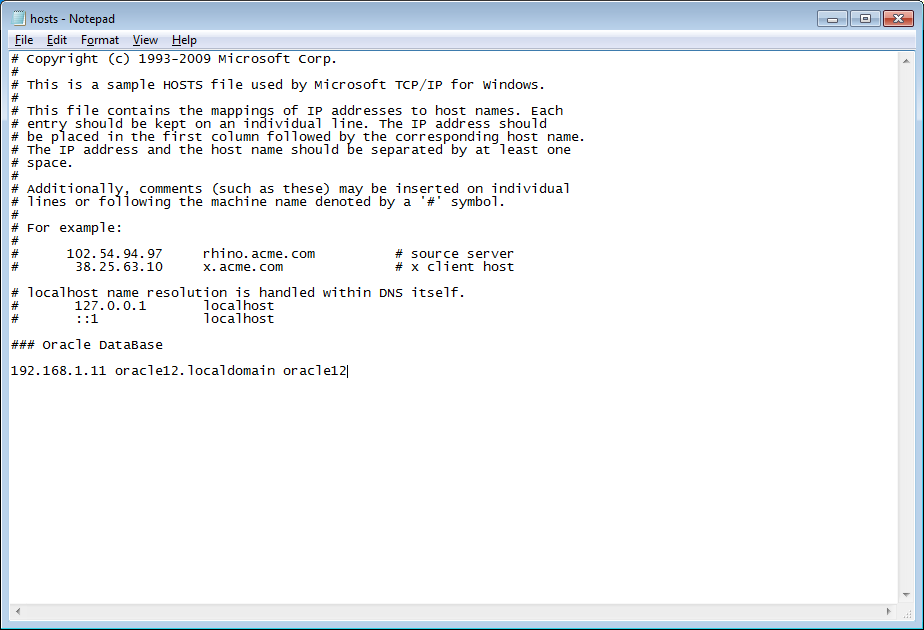
Edit the hosts file so that you don’t have to access the database server by its IP

The hosts file should be edited, for example, in notepad running under an account with administrator rights.

C:\WINDOWS\system32\drivers\etc\hosts

127.0.0.1   	localhost
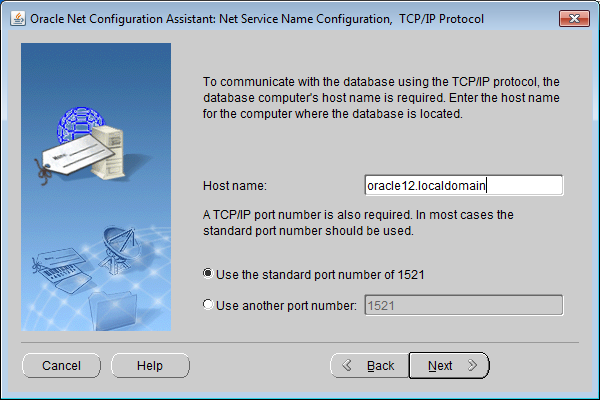
192.168.1.11	oracle12.localdomain oracle12
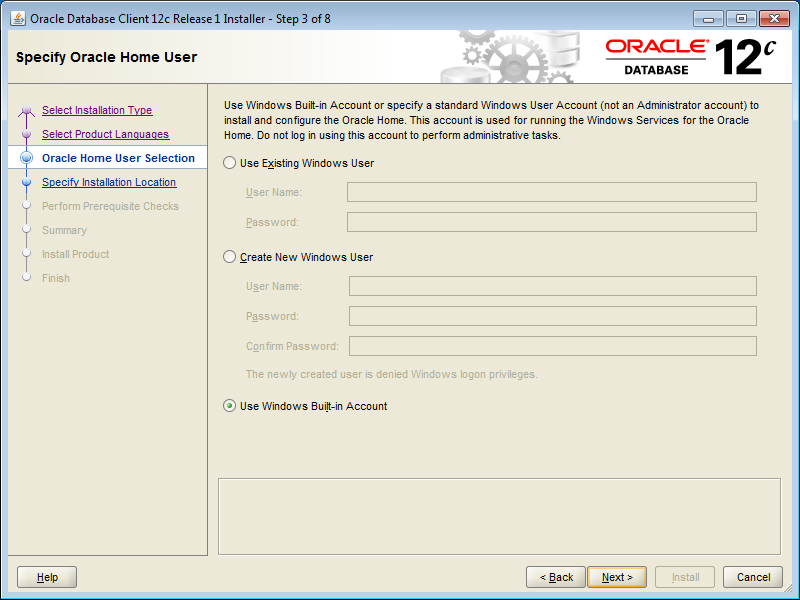
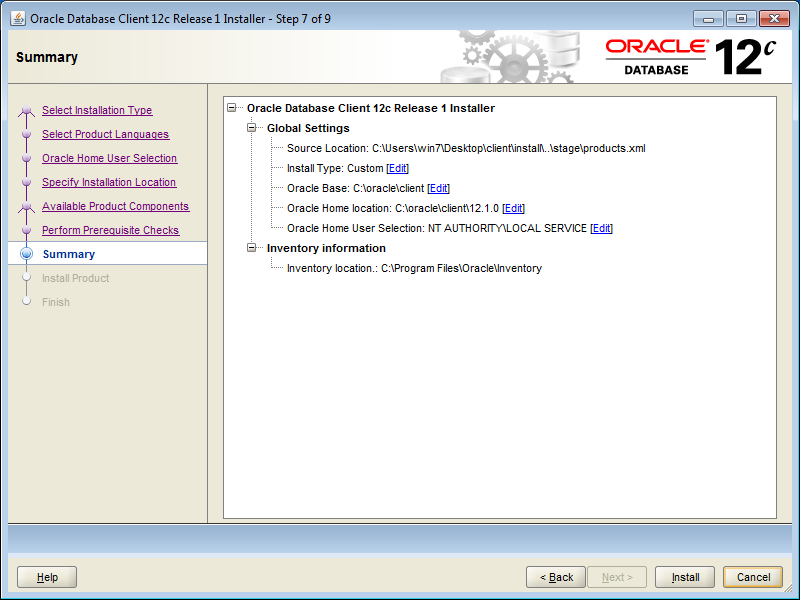
Installation of Oracle Client 12C (32 bit) on Windows 7 (64 bit)


Installation of Oracle Client 12C (32 bit) on Windows 7 (64 bit)


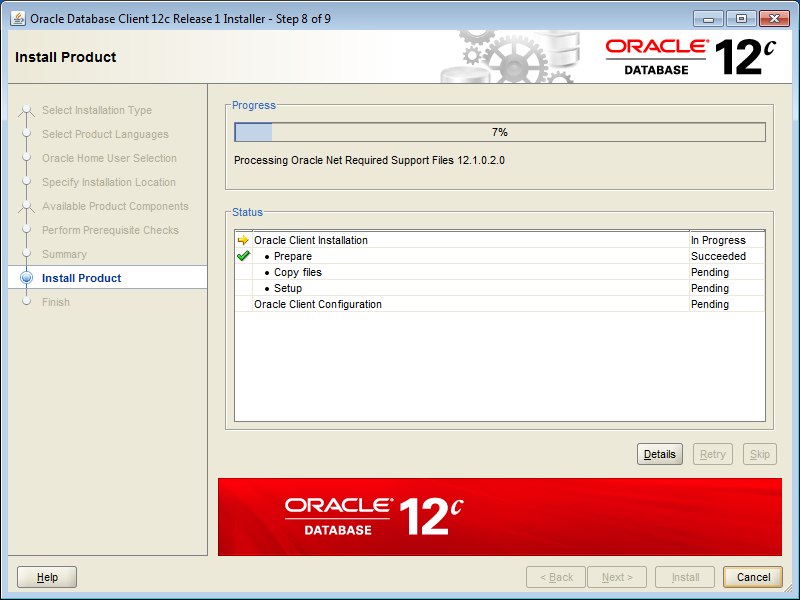
Installation of Oracle Client

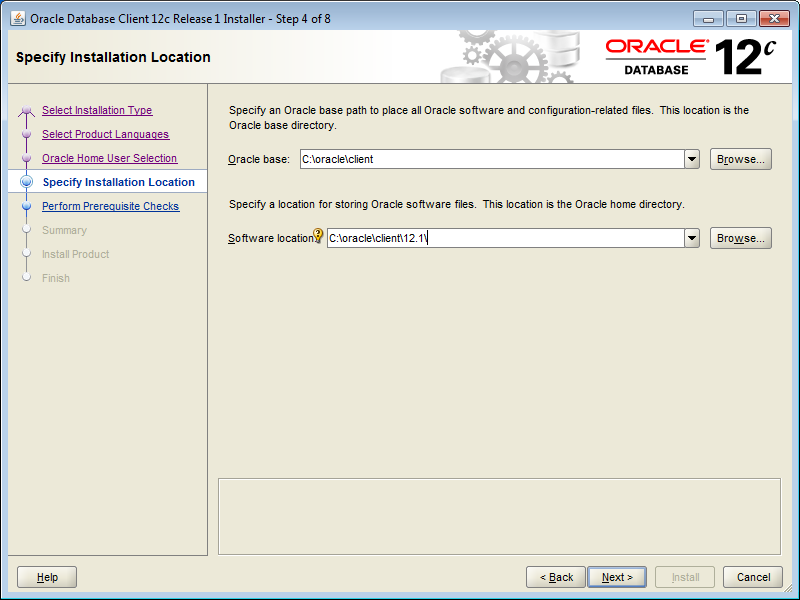
Installation of Oracle Client 12C (32 bit) on Windows 7 (64 bit)


Installation of Oracle Client 12C (32 bit) on Windows 7 (64 bit)


Installation of Oracle Client 12C (32 bit) on Windows 7 (64 bit)


Installation of Oracle Client 12C (32 bit) on Windows 7 (64 bit)


Installation of Oracle Client 12C (32 bit) on Windows 7 (64 bit)


Installation of Oracle Client 12C (32 bit) on Windows 7 (64 bit)

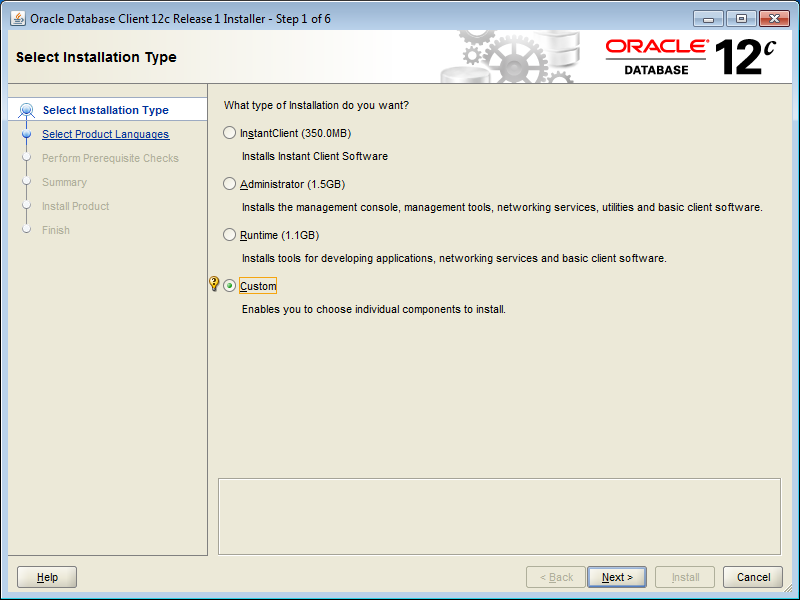
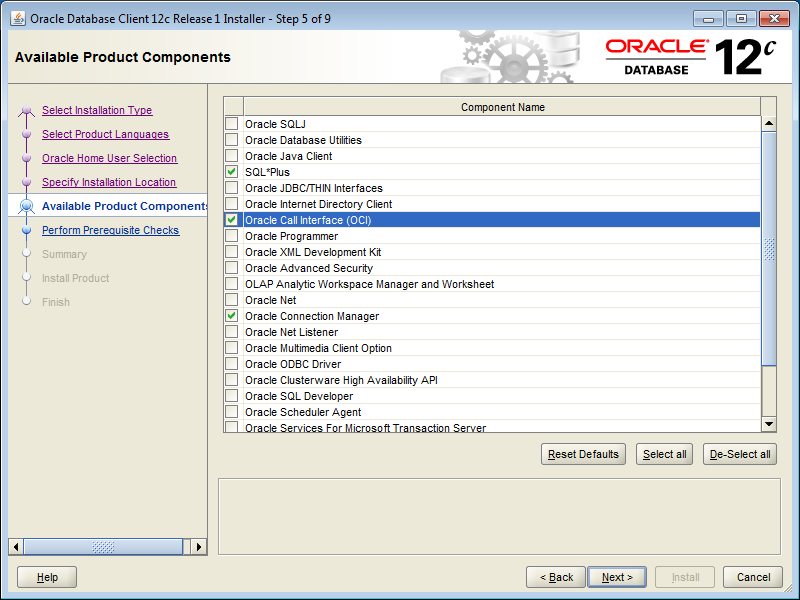
You only really need Oracle Call Interface. But for ease of setup and operation, I personally install 3 components:

  • SQL Plus
  • Oracle Call Interface (OCI)
  • Connection Manager
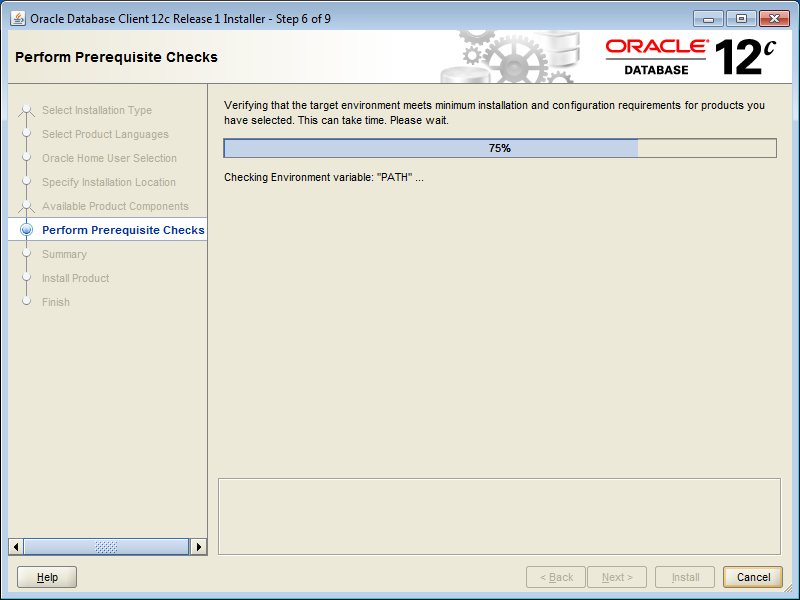
Installation of Oracle Client 12C (32 bit) on Windows 7 (64 bit)


Installation of Oracle Client 12C (32 bit) on Windows 7 (64 bit)


Installation of Oracle Client 12C (32 bit) on Windows 7 (64 bit)


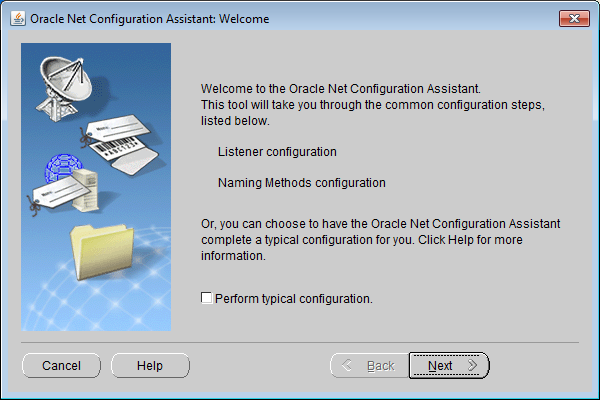
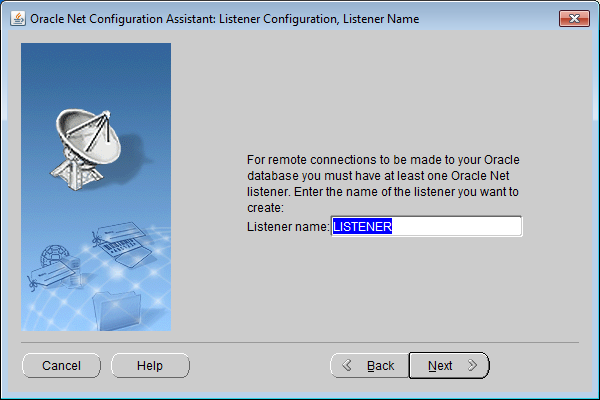
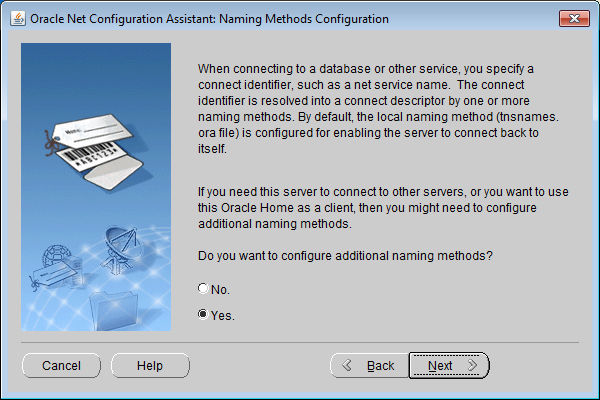
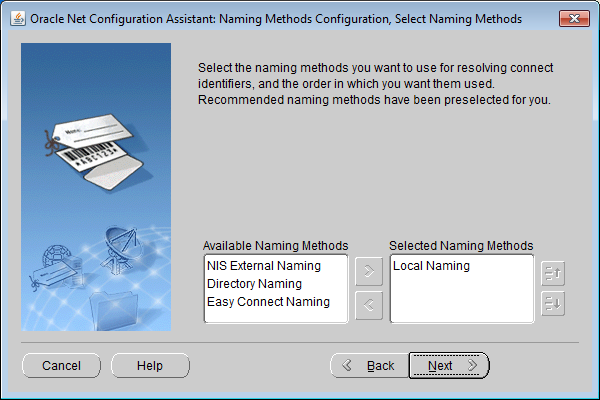
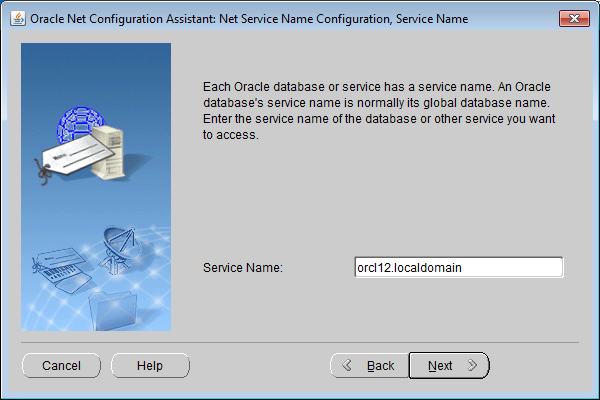
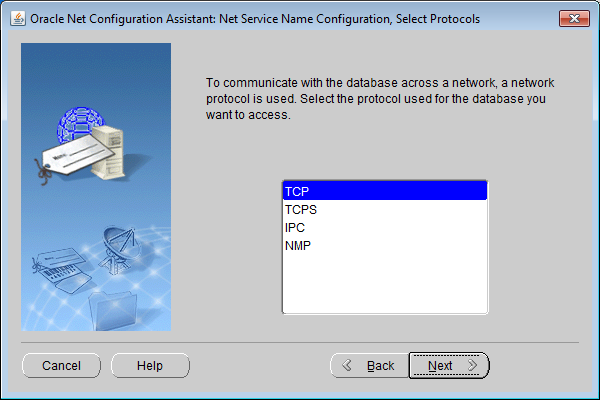
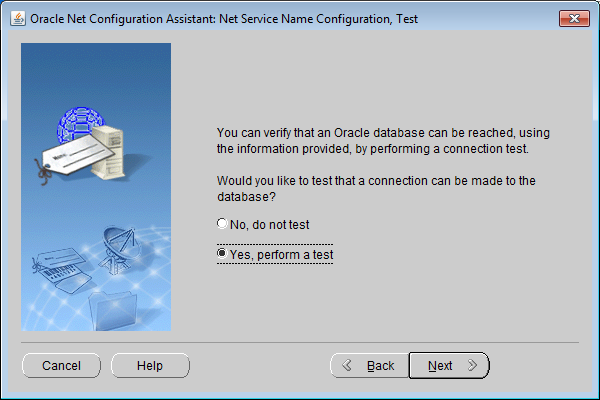
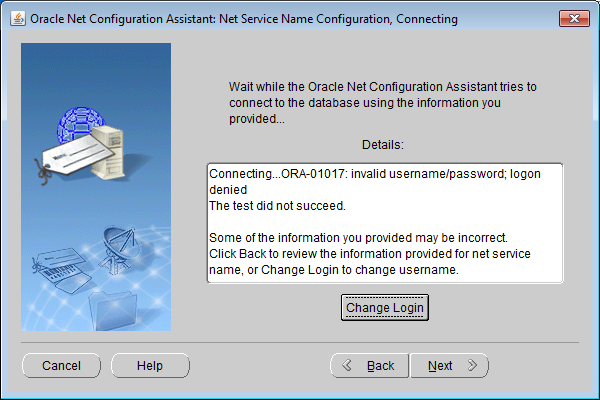
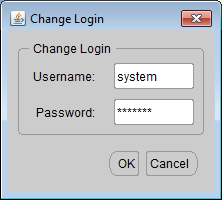
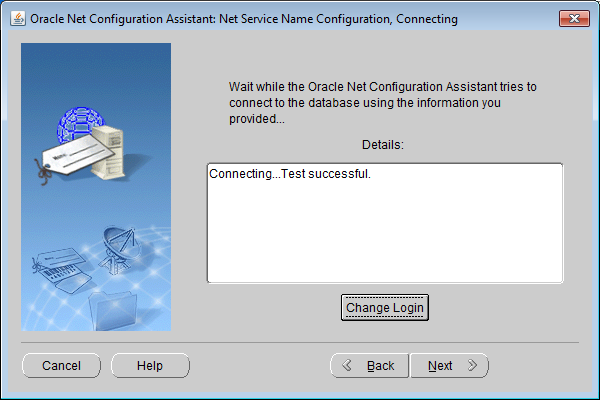
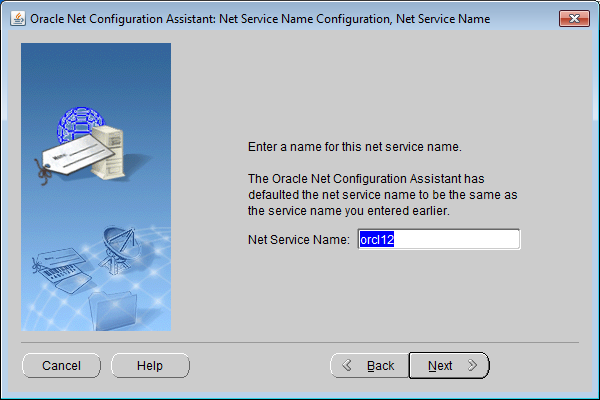
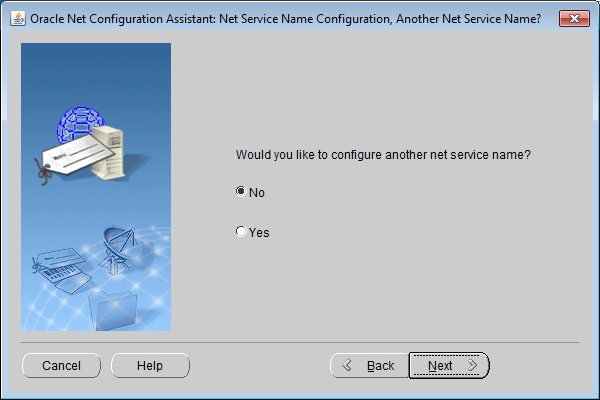
Generating configuration in the wizard for connecting to the database:

Installation of Oracle Client 12C (32 bit) on Windows 7 (64 bit)


Installation of Oracle Client 12C (32 bit) on Windows 7 (64 bit)


Installation of Oracle Client 12C (32 bit) on Windows 7 (64 bit)


Installation of Oracle Client 12C (32 bit) on Windows 7 (64 bit)


Installation of Oracle Client 12C (32 bit) on Windows 7 (64 bit)


Installation of Oracle Client 12C (32 bit) on Windows 7 (64 bit)


Installation of Oracle Client 12C (32 bit) on Windows 7 (64 bit)


Installation of Oracle Client 12C (32 bit) on Windows 7 (64 bit)


Installation of Oracle Client 12C (32 bit) on Windows 7 (64 bit)

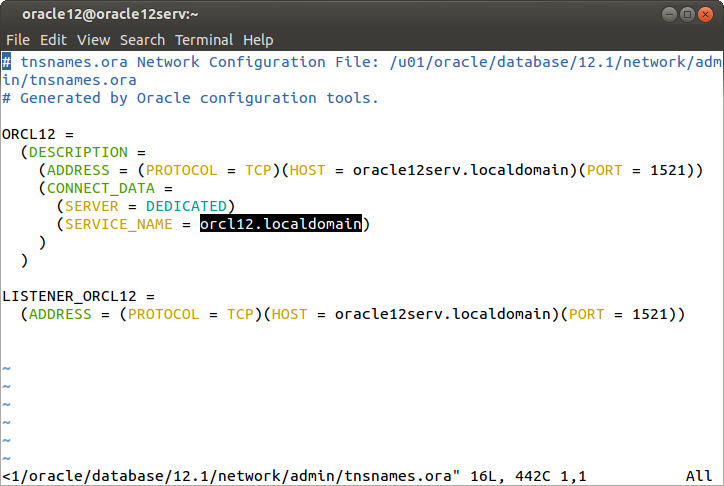
Connection parameters can be viewed on the server in the tnsnames.ora file

Installation of Oracle Client 12C (32 bit) on Windows 7 (64 bit)


Installation of Oracle Client 12C (32 bit) on Windows 7 (64 bit)


Installation of Oracle Client 12C (32 bit) on Windows 7 (64 bit)


Installation of Oracle Client 12C (32 bit) on Windows 7 (64 bit)


Installation of Oracle Client 12C (32 bit) on Windows 7 (64 bit)


Installation of Oracle Client 12C (32 bit) on Windows 7 (64 bit)


Installation of Oracle Client 12C (32 bit) on Windows 7 (64 bit)


Installation of Oracle Client 12C (32 bit) on Windows 7 (64 bit)


Installation of Oracle Client 12C (32 bit) on Windows 7 (64 bit)


Installation of Oracle Client 12C (32 bit) on Windows 7 (64 bit)


Installation of Oracle Client 12C (32 bit) on Windows 7 (64 bit)


Installation of Oracle Client 12C (32 bit) on Windows 7 (64 bit)


Installation of Oracle Client 12C (32 bit) on Windows 7 (64 bit)


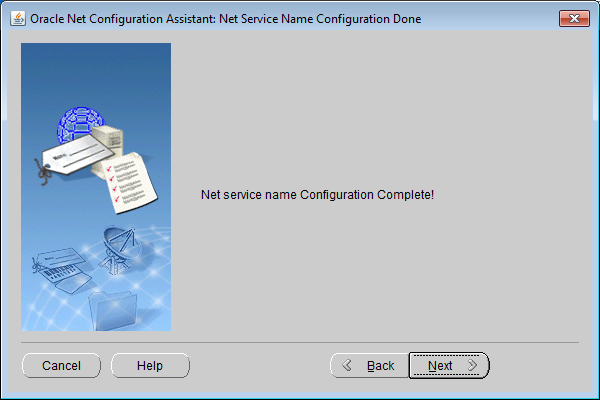
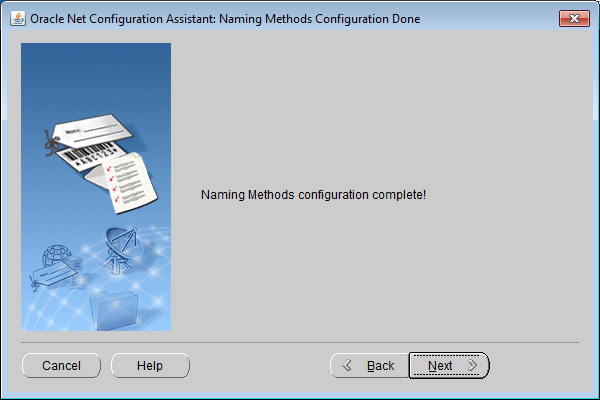
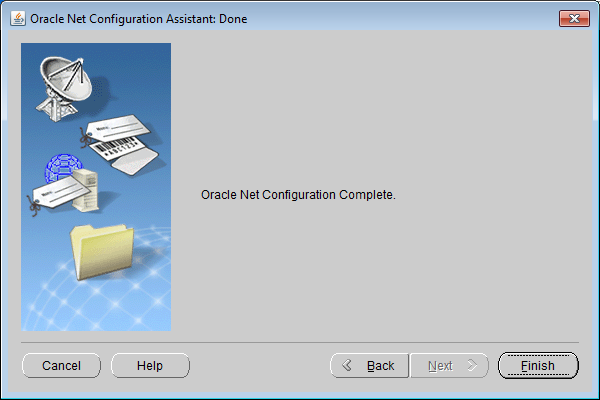
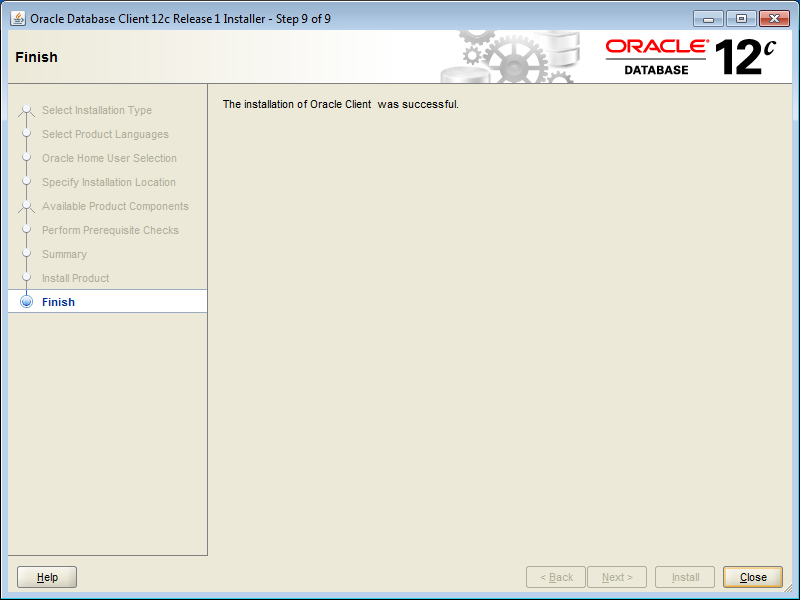
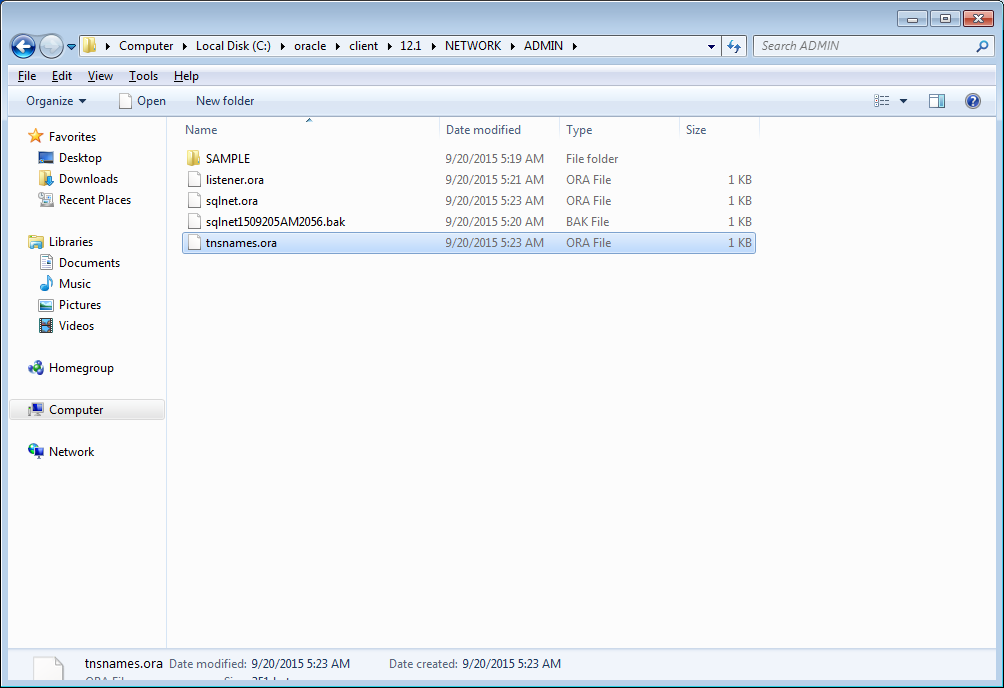
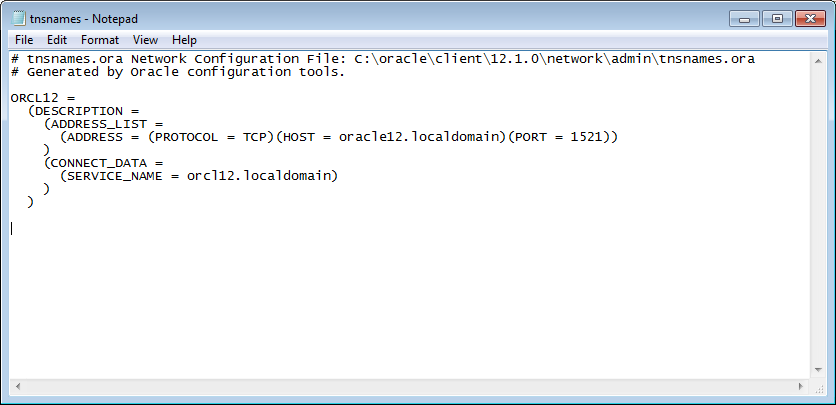
As a result, libraries are installed and a tnsnames.ora file is generated

Installation of Oracle Client 12C (32 bit) on Windows 7 (64 bit)


Installation of Oracle Client 12C (32 bit) on Windows 7 (64 bit)
ORCL12 =
  (DESCRIPTION =
    (ADDRESS_LIST =
      (ADDRESS = (PROTOCOL = TCP)(HOST = oracle12.localdomain)(PORT = 1521))
    )
    (CONNECT_DATA =
      (SERVICE_NAME = orcl12.localdomain)
    )
  )


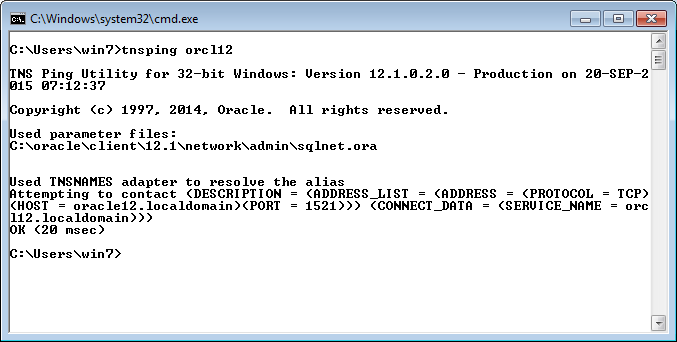
Verification

C:\> tnsping oracl12

system - login
manager - password

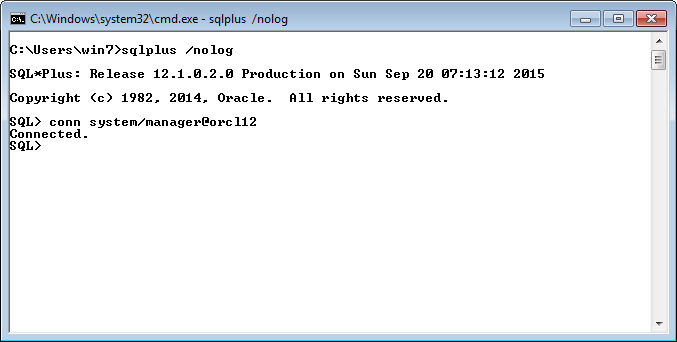
C:\>sqlplus /nolog
SQL> conn system/manager@oracle12
Installation of Oracle Client 12C (32 bit) on Windows 7 (64 bit)


Installation of Oracle Client 12C (32 bit) on Windows 7 (64 bit)


Installation of Oracle Client 12C (32 bit) on Windows 7 (64 bit)


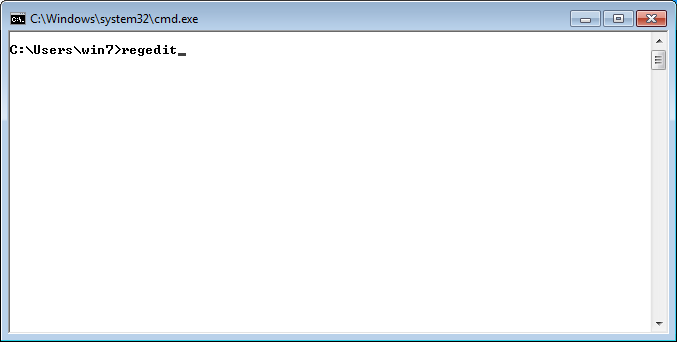
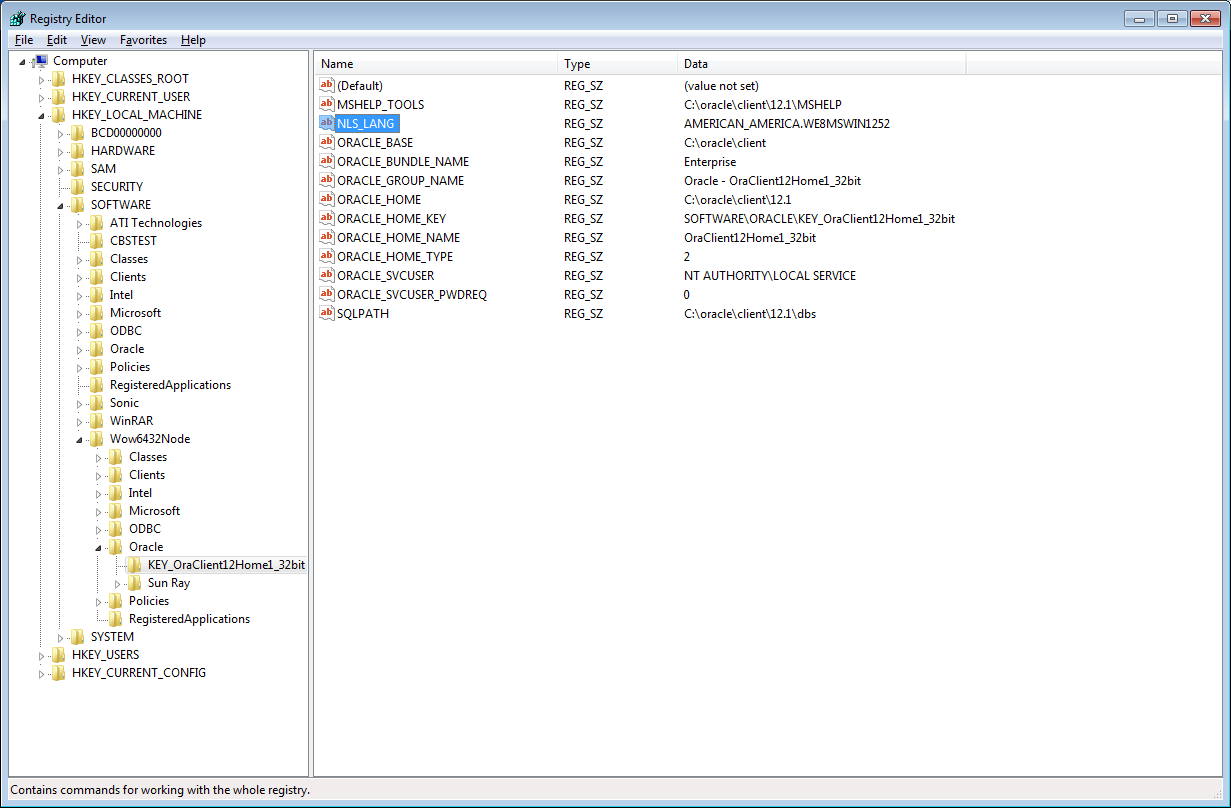
Oracle variables in registry

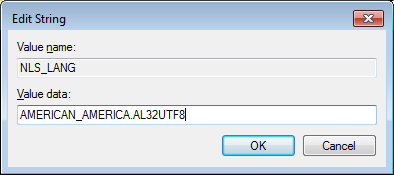
Instead of AMERICAN_AMERICA.WE8MSWIN1252 I set AMERICAN_AMERICA.AL32UTF8

Installation of Oracle Client 12C (32 bit) on Windows 7 (64 bit)


Installation of Oracle Client 12C (32 bit) on Windows 7 (64 bit)


Installation of Oracle Client 12C (32 bit) on Windows 7 (64 bit)


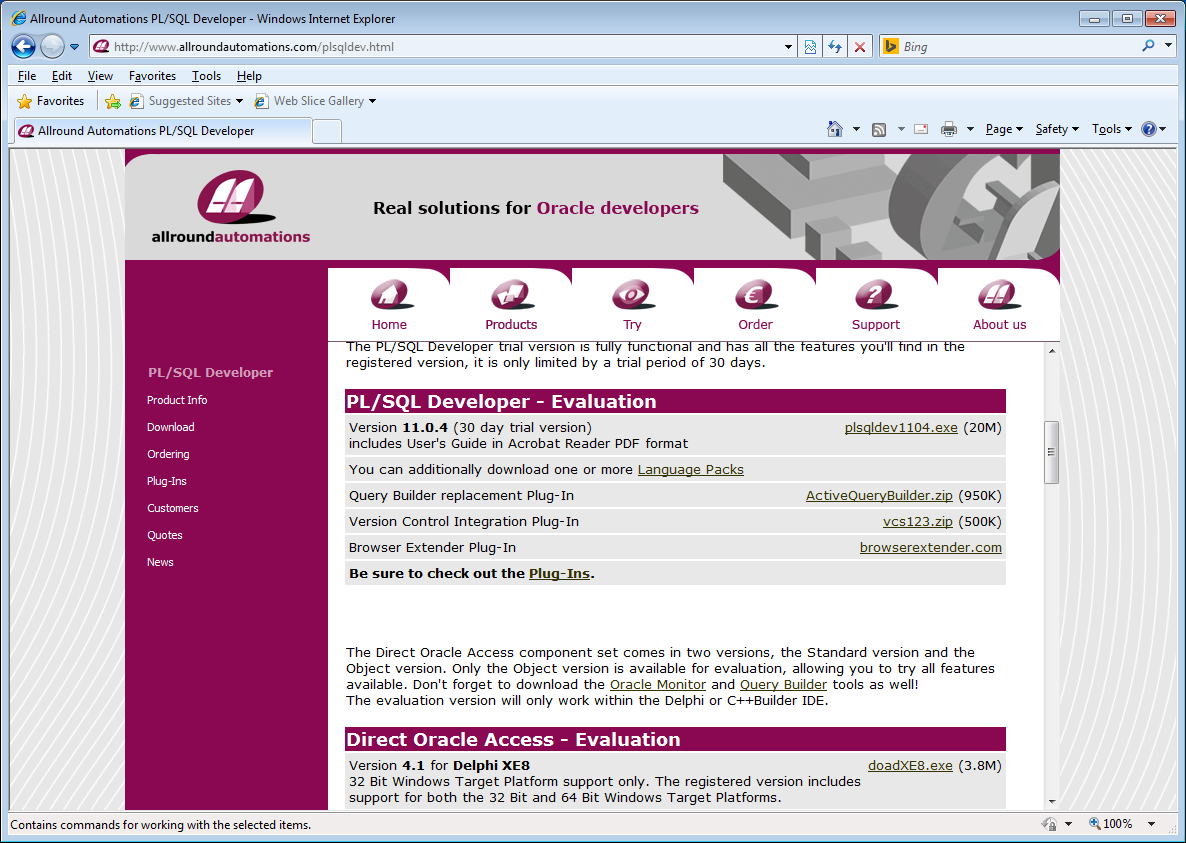
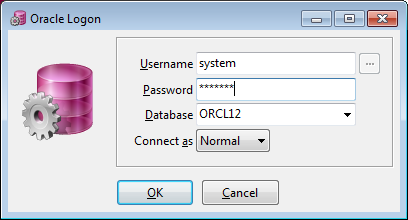
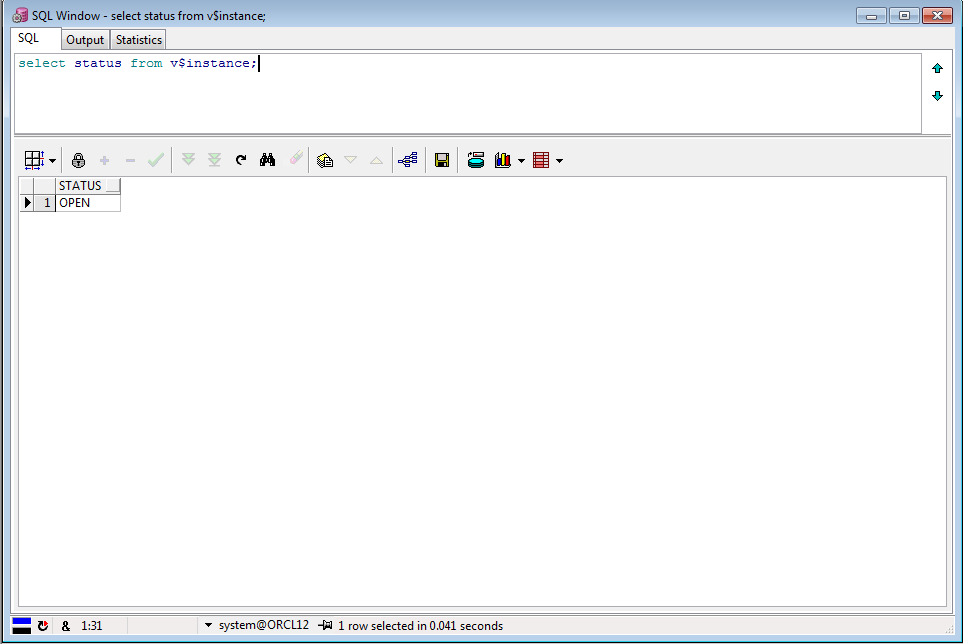
Connecting to the database using PL/SQL Developer

Installation of Oracle Client 12C (32 bit) on Windows 7 (64 bit)


Installation of Oracle Client 12C (32 bit) on Windows 7 (64 bit)


Installation of Oracle Client 12C (32 bit) on Windows 7 (64 bit)